
Configuring FortiGate Firewall for Orange Belgium Cloud Telephony
In this article, I’ll walk you through each step to prepare a FortiGate firewall so that Orange Cloud Telephony runs flawlessly.
1. Disable SIP ALG
By default, FortiGate has a feature called SIP-ALG enabled, which interferes with cloud telephony. We need to turn it off.
Backup first
Before making any changes, back up your current firewall configuration so you can restore it if needed.
SIP ALG and SIP NAT Trace
For FortiOS ≥ 6.2.2
config system settings
set sip-expectation disable
set sip-nat-trace disable
set default-voip-alg-mode kernel-helper-based
end
These commands disable SIP-ALG expectation and NAT trace, and set the VOIP ALG mode to kernel-helper-based, preventing SIP packets from being modified.
For FortiOS < 6.2.2
config system settings
set sip-helper disable
set sip-nat-trace disable
set default-voip-alg-mode kernel-helper-based
end
Use these in older versions for equivalent behavior.
Remove the SIP Session Helper
The SIP session helper also processes SIP packets via ALG. Remove it so SIP traffic passes untouched:
config system session-helper
show
You’ll see a list—locate the entry named sip, for example:
edit 13

set name sip

set protocol 17

set port 5060

next

end
Here the helper ID is 13. Don’t assume it’s always 13—verify before you delete.
delete 13
end
Disable RTP Processing
Prevent RTP sessions from being opened or altered:
config voip profile
edit default
config sip
set rtp disable
end
end
And completely disable SIP in the VoIP profile:
config voip profile
edit default
config sip
set status disable
end
end
end
These steps ensure FortiGate no longer opens or modifies RTP sessions, leaving audio traffic untouched.
Optional reboot
Most changes take effect immediately, but it’s good practice to reboot after removing the session helper:execute reboot
2. Create Address Objects, Groups & Services
Paste the following into your FortiGate CLI. It automatically creates a custom service group containing every port, IP range and FQDN that Orange Cloud Telephony uses:
config firewall service custom
edit Orange_Cloud_Telephony_ports
set comment Cloud_Telephony_Belgium_Direct
set color 9
set iprange 185.65.73.128-185.65.73.255
set tcp-portrange 80 443 5060 5061
set udp-portrange 5060 49152-65534 123 514
next
edit Update_CloudBKM_com_HTTP
set comment For_updates
set color 2
set fqdn update.cloudbkm.com
set tcp-portrange 80
next
edit rcs_aastra_com_HTTPS
set comment redirect_server_for_provisioning
set color 3
set fqdn rcs.aastra.com
set tcp-portrange 443
next
edit ntp_1_aastra_pool_ntp_org
set comment 1.aastra.pool.ntp.org-NTP
set color 4
set fqdn 1.aastra.pool.ntp.org
set tcp-portrange 123
set udp-portrange 123
next
edit ntp_2_aastra_pool_ntp_org
set comment 2.aastra.pool.ntp.org-NTP
set color 4
set fqdn 2.aastra.pool.ntp.org
set tcp-portrange 123
set udp-portrange 123
next
edit ntp_3_aastra_pool_ntp_org
set comment 3.aastra.pool.ntp.org-NTP
set color 4
set fqdn 3.aastra.pool.ntp.org
set tcp-portrange 123
set udp-portrange 123
next
edit android_pool_ntp_org_0
set comment android_pool_ntp_org_0
set color 4
set fqdn 0.android.pool.ntp.org
set tcp-portrange 123
set udp-portrange 123
next
edit android_pool_ntp_org_1
set comment android_pool_ntp_org_1
set color 4
set fqdn 1.android.pool.ntp.org
set tcp-portrange 123
set udp-portrange 123
next
edit android_pool_ntp_org_2
set comment android_pool_ntp_org_2
set color 4
set fqdn 2.android.pool.ntp.org
set tcp-portrange 123
set udp-portrange 123
next
edit Apple_Init_Push_iOS
set comment .init.push.apple.com-iOS-Push
set color 5
set iprange 17.0.0.0-17.255.255.255
set tcp-portrange 443 2197 5223
next
edit mtalk_google_com_Push
set comment mtalk.google.com-Google-Push
set color 5
set fqdn mtalk.google.com
set tcp-portrange 443 5228-5230
next
edit mtalk4_google_com_Push
set comment mtalk4.google.com-Google-Push
set color 5
set fqdn mtalk4.google.com
set tcp-portrange 443 5228-5230
next
edit mobile_gtalk_l_google_com_Push
set comment mobile-gtalk.l.google.com-Google-Push
set color 5
set fqdn mobile-gtalk.l.google.com
set tcp-portrange 443 5228-5230
next
edit ntp_0_pool_ntp_org
set comment 0.pool.ntp.org-NTP
set color 4
set fqdn 0.pool.ntp.org
set tcp-portrange 123
set udp-portrange 123
next
edit ntp_0_ciscosb_pool_ntp_org
set comment 0.ciscosb.pool.ntp.org-NTP
set color 4
set fqdn 0.ciscosb.pool.ntp.org
set tcp-portrange 123
set udp-portrange 123
next
edit general_ntp
set comment wildcard.ntp.org
set color 4
set fqdn *.ntp.org
set tcp-portrange 123
set udp-portrange 123
next
end
config firewall service group
edit Orange_Cloud_Telephony_Svc
set member Orange_Cloud_Telephony_ports
append member Update_CloudBKM_com_HTTP
append member rcs_aastra_com_HTTPS
append member ntp_1_aastra_pool_ntp_org
append member ntp_2_aastra_pool_ntp_org
append member ntp_3_aastra_pool_ntp_org
append member Apple_Init_Push_iOS
append member mtalk_google_com_Push
append member mtalk4_google_com_Push
append member mobile_gtalk_l_google_com_Push
append member ntp_0_pool_ntp_org
append member ntp_0_ciscosb_pool_ntp_org
append member general_ntp
append member PING
append member android_pool_ntp_org_0
append member android_pool_ntp_org_1
append member android_pool_ntp_org_2
next
end
The above block creates the Orange_Cloud_Telephony_Svc service group on your firewall:
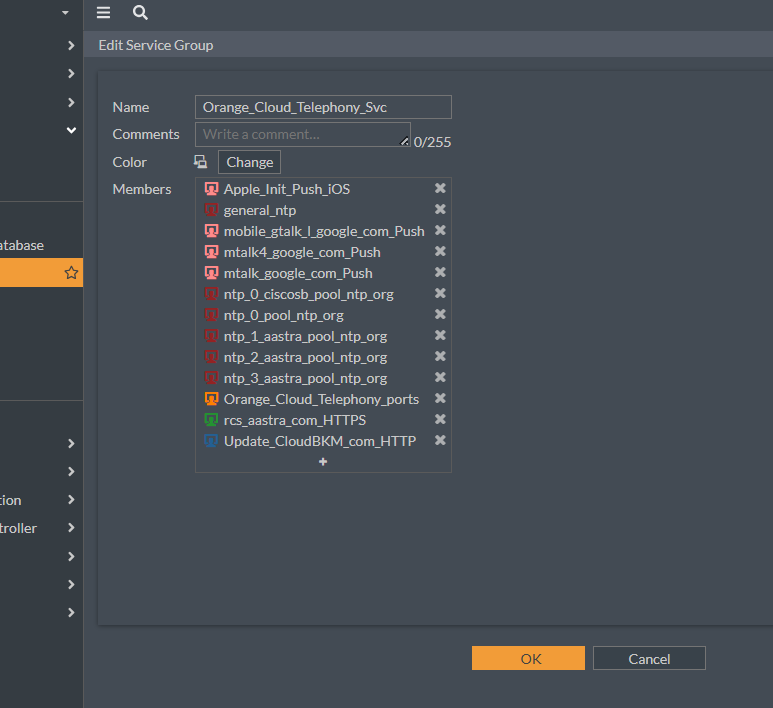
Next, create a single address object that contains every IP range and FQDN. Copy–and-paste the CLI block below so everything is created in one go:
config firewall address
edit Orange_Cloud_Telephony_IPRange
set type iprange
set start-ip 185.65.73.128
set end-ip 185.65.73.255
set color 9
set comment Cloud_Telephony_Belgium_Direct
next
edit Apple_Push_IPRange
set type iprange
set start-ip 17.0.0.0
set end-ip 17.255.255.255
set color 5
set comment .init.push.apple.com-iOS-Push
next
edit update_cloudbkm_com
set type fqdn
set fqdn update.cloudbkm.com
set color 2
set comment For_updates
next
edit rcs_aastra_com
set type fqdn
set fqdn rcs.aastra.com
set color 3
set comment redirect_server_for_provisioning
next
edit ntp_1_aastra_pool_ntp_org
set type fqdn
set fqdn 1.aastra.pool.ntp.org
set color 4
set comment 1.aastra.pool.ntp.org-NTP
next
edit ntp_2_aastra_pool_ntp_org
set type fqdn
set fqdn 2.aastra.pool.ntp.org
set color 4
set comment 2.aastra.pool.ntp.org-NTP
next
edit ntp_3_aastra_pool_ntp_org
set type fqdn
set fqdn 3.aastra.pool.ntp.org
set color 4
set comment 3.aastra.pool.ntp.org-NTP
next
edit android_pool_ntp_org_0
set type fqdn
set fqdn 0.android.pool.ntp.org
set color 4
set comment android_pool_ntp_org_0
next
edit android_pool_ntp_org_1
set type fqdn
set fqdn 1.android.pool.ntp.org
set color 4
set comment android_pool_ntp_org_1
next
edit android_pool_ntp_org_2
set type fqdn
set fqdn 2.android.pool.ntp.org
set color 4
set comment android_pool_ntp_org_2
next
edit ntp_0_pool_ntp_org
set type fqdn
set fqdn 0.pool.ntp.org
set color 4
set comment 0.pool.ntp.org-NTP
next
edit ntp_0_ciscosb_pool_ntp_org
set type fqdn
set fqdn 0.ciscosb.pool.ntp.org
set color 4
set comment 0.ciscosb.pool.ntp.org-NTP
next
edit general_ntp_wildcard
set type fqdn
set fqdn *.ntp.org
set color 4
set comment wildcard.ntp.org
next
edit mtalk_google_com
set type fqdn
set fqdn mtalk.google.com
set color 5
set comment mtalk.google.com-Google-Push
next
edit mtalk4_google_com
set type fqdn
set fqdn mtalk4.google.com
set color 5
set comment mtalk4.google.com-Google-Push
next
edit mobile_gtalk_l_google_com
set type fqdn
set fqdn mobile-gtalk.l.google.com
set color 5
set comment mobile-gtalk.l.google.com-Google-Push
next
end
config firewall addrgrp
edit Orange_Cloud_Telephony_destinations
set color 9
set member Orange_Cloud_Telephony_IPRange
append member Apple_Push_IPRange
append member update_cloudbkm_com
append member rcs_aastra_com
append member ntp_1_aastra_pool_ntp_org
append member ntp_2_aastra_pool_ntp_org
append member ntp_3_aastra_pool_ntp_org
append member ntp_0_pool_ntp_org
append member ntp_0_ciscosb_pool_ntp_org
append member general_ntp_wildcard
append member mtalk_google_com
append member mtalk4_google_com
append member mobile_gtalk_l_google_com
append member android_pool_ntp_org_2
append member android_pool_ntp_org_1
append member android_pool_ntp_org_0
next
end
The above block creates the Orange_Cloud_Telephony_destinations address group on your firewall:
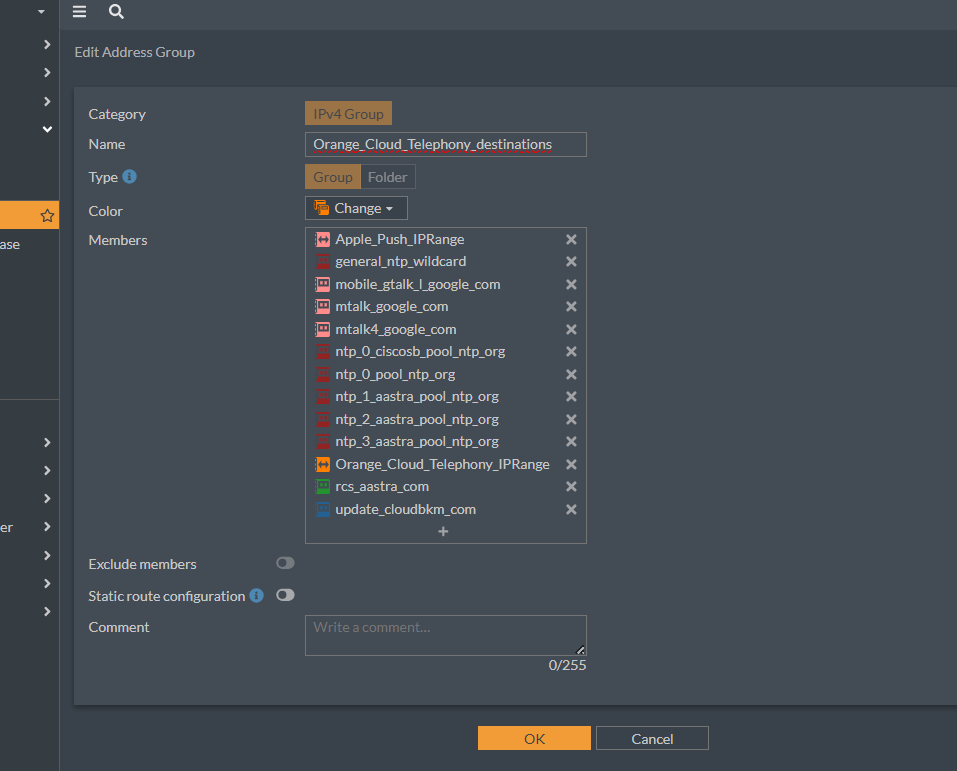
3. Create Firewall Policies
Now we still need to create the firewall rules. Proceed as follows:
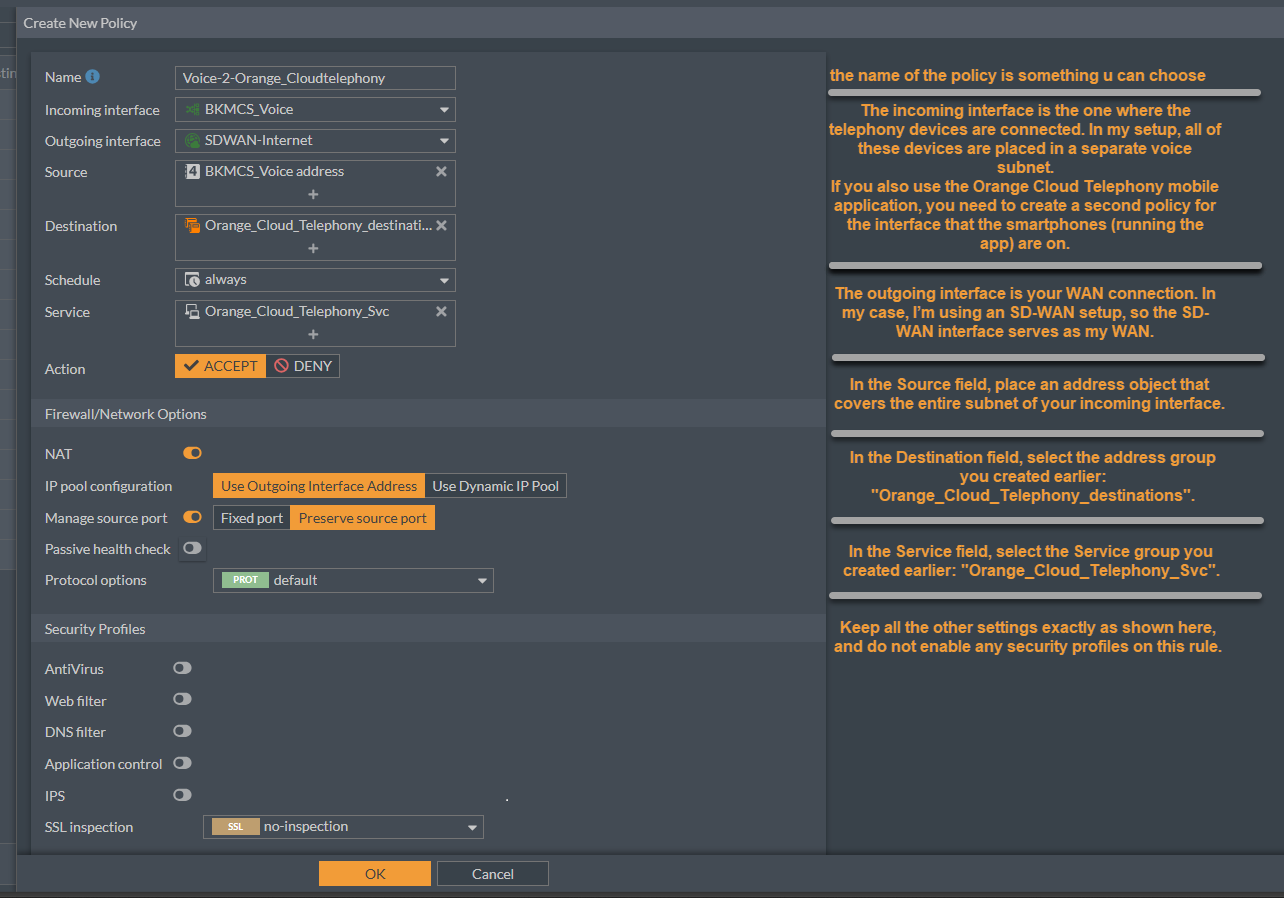
- Name — Choose something that clearly identifies the policy’s purpose.
- Incoming Interface — Select the interface where your telephony devices reside (in the screenshot it’s a dedicated voice subnet).
IMPORTANT! If you also use the Orange Cloud Telephony mobile app, create a second policy that uses the interface/VLAN where those smartphones connect that use the app. - Outgoing Interface — Your WAN uplink. If you’re using SD-WAN, select the SD-WAN virtual interface, as that is effectively your WAN egress.
- Source — An address object covering the entire subnet of the incoming interface (your voice subnet, or the smartphone subnet in the second policy).
- Destination — Choose the address group you created earlier: Orange_Cloud_Telephony_destinations.
- Service — Select the service group you built: Orange_Cloud_Telephony_Svc. This restricts the rule to only the required ports.
- Leave all other settings exactly as shown and do not enable any security profiles on this rule—UTM inspection isn’t needed for a simple allow rule to trusted telephony back-ends.
- Enable logging if you want visibility, then enable & save and place the policy in the correct order so it’s evaluated before any broader deny rules.
Done—your policy now cleanly matches interfaces, source/destination objects, and only the necessary services.
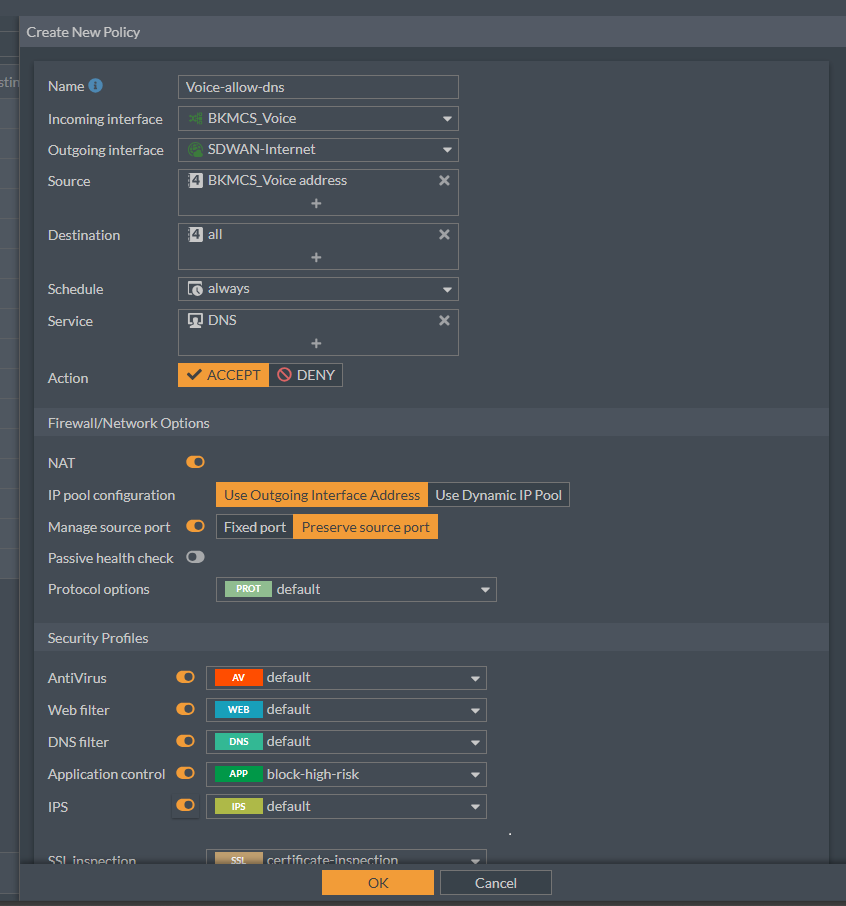
As a final touch, I create a generic firewall policy that permits DNS traffic from the voice subnet to the internet.
Why keep it broad?
- fixed phones may use a different DNS server than the one you distribute via DHCP.
- In some setups you are not the DHCP server, so you cannot enforce the DNS settings on every device.
- A simple “allow DNS” rule prevents unexpected name-resolution issues during calls.
If you know exactly which DNS servers your deployment uses, feel free to tighten the rule later.
Apply the same logic to the subnet where the smartphones (Orange Cloud Telephony mobile app) reside—although smartphones usually sit in a network segment where DNS is already allowed.
Here’s a reference rule:
That’s it! With these steps, your FortiGate is ready to handle Orange Cloud Telephony traffic without interference.
Sources:
https://community.fortinet.com/t5/FortiGate/Technical-Tip-Disabling-VoIP-Inspection/ta-p/194131 - Archived-link: https://archive.ph/twMzy
📄 Download Orange Cloud Telephony Firewall Settings (PDF)