
FortiGate Geographic Based Internet Service: The Easier Way to Filter Google Cloud by Region
A few months ago I wrote about allowing traffic to a specific Google Cloud region on FortiGate using an External Resource threat feed. It worked, and for a while it was my go-to trick whenever a customer needed “only europe-west3, nothing else from Google.”
Then I stumbled on something I had never noticed in the FortiGate GUI before: Geographic Based Internet Services. Turns out you don’t need an external resource at all. FortiGate can already do region-level filtering on its built-in Internet Service Database (ISDB) — and it has been able to do this for quite a while. It’s just not a feature most people seem to know about; when you search online you don’t find much written about it either.
Consider this post the update to my earlier article. 🙂
What is a Geographic Based Internet Service?
The FortiGate Internet Service Database (ISDB) is the big library of known public services — Google, Microsoft 365, AWS, Dropbox, Zoom, and so on — that Fortinet keeps updated with their public IP ranges. Most engineers know it because you can drop an ISDB entry straight into a firewall policy’s Destination field and skip the endless CIDR-wrangling.
What a lot of engineers don’t know is that you can create a custom Internet Service that takes one of those built-in services and slices it down to a specific country or region inside that country. Fortinet calls this type a location internet service — hence the name “Geographic Based Internet Service” in the GUI.
In plain terms:
Take an existing Internet Service (like “Google-Google.Cloud”), keep only the IP ranges that Fortinet attributes to a given country or region, and expose the result as a reusable object you can put in a firewall policy.
That’s exactly the use case I was solving with an External Resource before. Now I don’t need one.
Why this is better than an External Resource
Both approaches get you to the same destination, but the Geographic Based Internet Service is significantly lighter:
| External Resource (old approach) | Geographic Based Internet Service (new approach) | |
|---|---|---|
| Source of truth | External URL you have to host or trust | FortiGuard ISDB (already on the firewall) |
| Maintenance | URL must stay reachable & up-to-date | Automatic — updates come with FortiGuard |
| Internet dependency | FortiGate must be able to fetch the URL | None — everything is local to the FortiGate |
| Licensing | None specifically | Relies on an active FortiGuard ISDB subscription |
| Config complexity | Threat feed + address object + policy | One custom internet service + policy |
| Visibility in GUI | Threat feed section | Lives next to the built-in Internet Services |
If you have a valid FortiGuard subscription (which you almost certainly do if you’re using ISDB entries anyway), the Geographic Based approach is the cleaner answer.
The scenario: allow only Google Cloud europe-west3
Just like in the previous article, I had an application that only needed to reach Google Cloud workloads hosted in the europe-west3 region (Frankfurt). Any other Google Cloud region is irrelevant and should not be reachable.
With the Geographic Based Internet Service this becomes a four-line CLI job.
Step 1 — Create the Geographic Based Internet Service via the GUI (optional)
You can do the whole thing in the CLI, but it’s worth knowing where it lives in the GUI because that’s where this feature actually becomes discoverable.
Go to Policy & Objects → Internet Service Database → Create New. In the creation dialog, switch the Type toggle to Geographic Based (this is the bit most people miss):
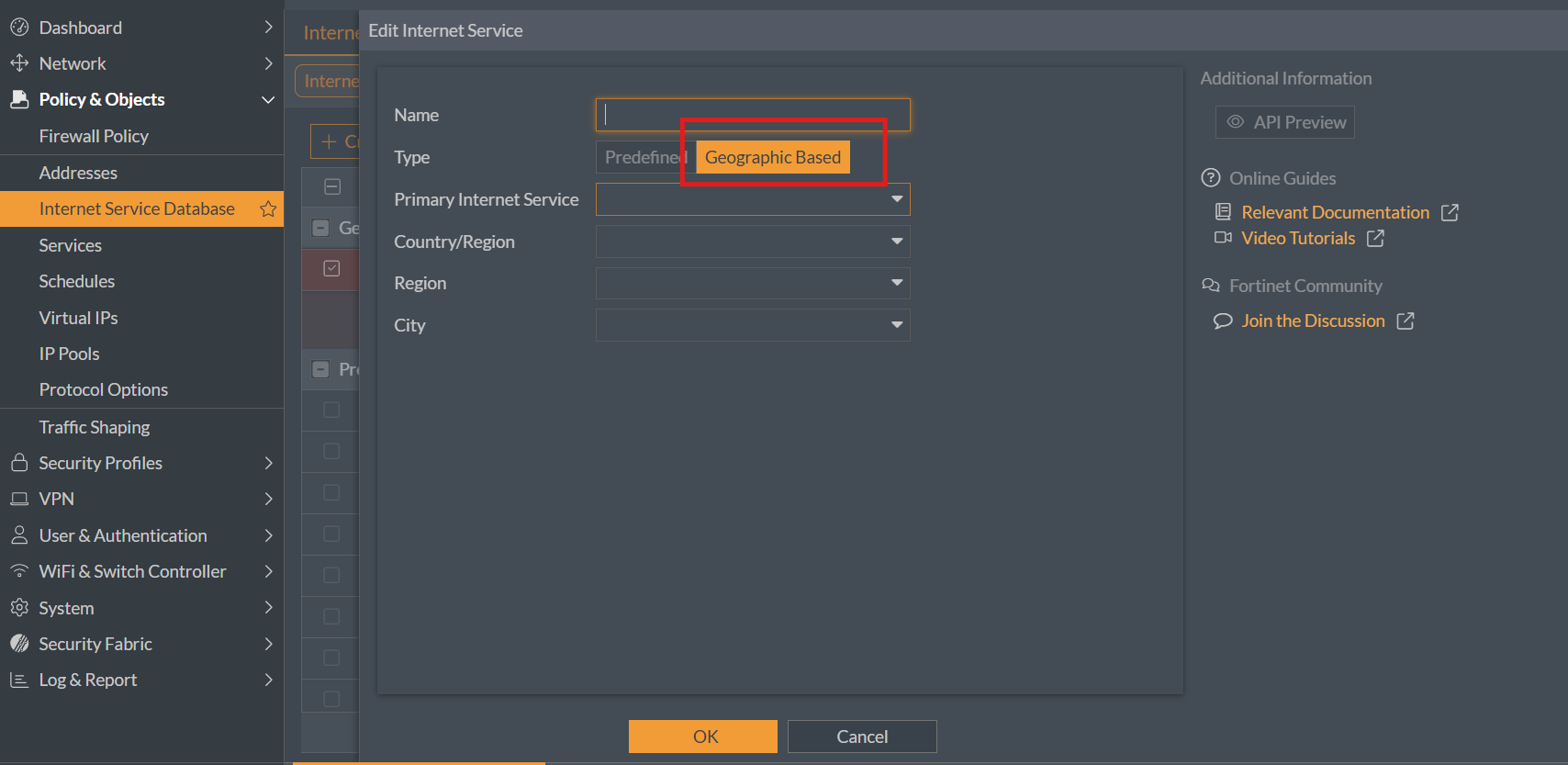
From there you pick:
- Primary Internet Service — the built-in ISDB entry you want to narrow down (e.g.
Google-Google.Cloud). - Country/Region — the country.
- Region — the sub-region inside that country, if the cloud provider exposes one (this is how you get down to
europe-west3). - City — optional, usually
Any.
The result looks like this once saved:
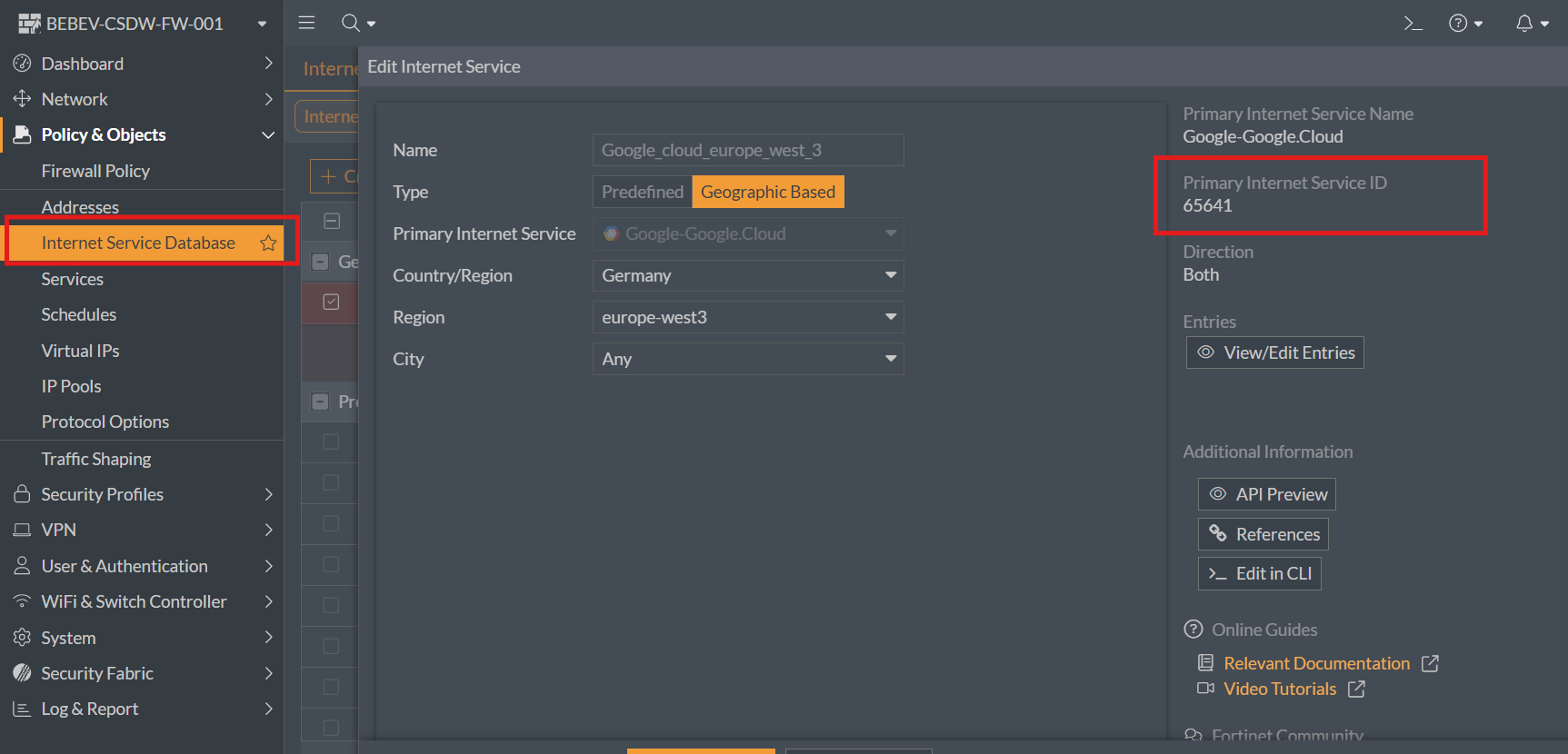
Note the Primary Internet Service ID on the right: 65641. That’s the internal ID of the Google-Google.Cloud ISDB entry. Good to know for the CLI.
Step 2 — The CLI equivalent
If you prefer the CLI (and let’s be honest, most of us do), the exact same object is four commands:
config firewall internet-service-name
edit “Google_cloud_europe_west_3”
set type location
set internet-service-id 65641
set country-id 276
set region-id 10068
next
end
A quick walkthrough of the values:
set type location— this is the magic keyword that turns a normal custom Internet Service into a Geographic Based one.set internet-service-id 65641— the Primary Internet Service, in this caseGoogle-Google.Cloud.set country-id 276— the country ID (Germany).set region-id 10068— the region ID inside Germany (europe-west3).
If you’re not sure about the IDs, create the object once in the GUI and then run show on it — that’s exactly how I got mine. The IDs are stable, so once you know them you can copy-paste this snippet across firewalls.
Step 3 — Use it in a firewall policy
From here the object behaves like any other Internet Service. In your firewall policy, set the Destination to your new Google_cloud_europe_west_3 entry instead of the full Google-Google.Cloud ISDB. That’s it.
No threat feed, no URL to keep alive, no separate address object, no script that rebuilds a list every night.
Why is this feature so obscure?
Honestly, I don’t know. It’s been in FortiOS for quite a while, it’s a first-class feature, it lives right in the Policy & Objects menu — and yet when you search for it online there’s barely anything written about it. Most tutorials either reach for threat feeds / External Resources, or they point people at the old “create one address object per region” approach.
My guess is that it’s a combination of:
- The feature is tucked under Internet Service Database → Create New, which most people read as “look at the built-in services” and don’t click.
- The crucial Type: Geographic Based toggle is easy to miss.
- The result looks like “just another internet service object”, so it doesn’t show up as something special in tutorials or screenshots.
Whatever the reason: it’s worth the two minutes it takes to explore.
Takeaway
If you’ve been using External Resource threat feeds on a FortiGate just to restrict a cloud provider to a specific country or region, give the Geographic Based Internet Service a try first. It covers 95% of those scenarios with less moving parts, fewer places for things to break, and a single config firewall internet-service-name block that you can ship as infrastructure-as-config across all your customer firewalls.
It’s the sort of hidden FortiGate gem that makes you go “wait, this was in there all along?” — and then quietly replaces three of your older configurations on the next maintenance window. 🔧