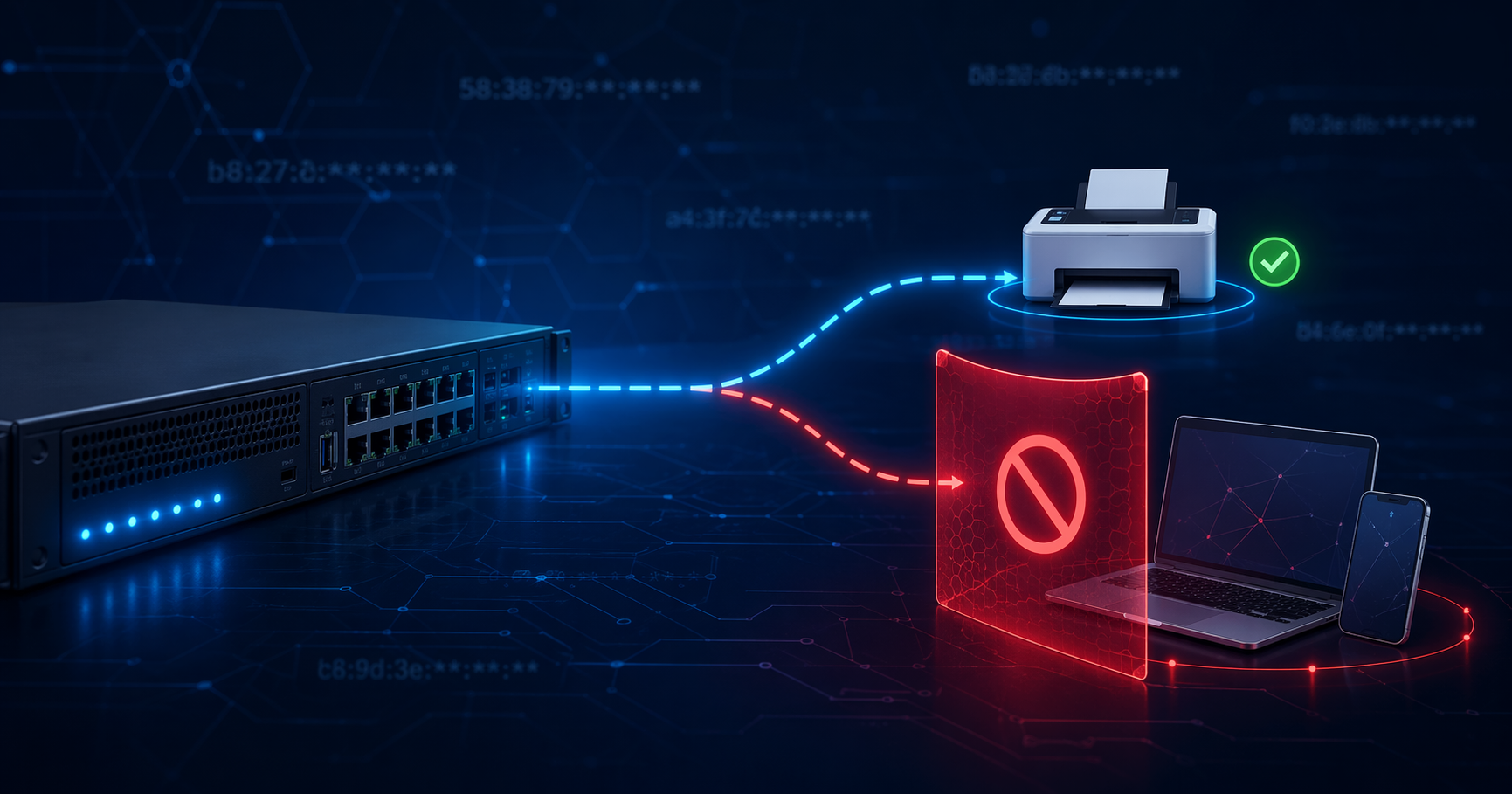
Locking Down a Printer VLAN on FortiGate: Block Unknown Devices with DHCP MAC ACL
Some VLANs have a very predictable lifecycle. A printer VLAN is the clearest example: once all printers are deployed and reserved in DHCP, you know up front that no new device will ever legitimately appear on that subnet again. No laptops, no phones, no contractor tablets — just printers that are already there.
And yet, by default, your FortiGate DHCP server will happily hand out an IP to anything that joins that VLAN. That’s a problem. 🙃
The scenario: a printer VLAN that “should be closed”
Here’s the typical setup at a small customer:
- A dedicated printer VLAN (let’s call it
VLAN40, subnet10.130.40.0/24). - A FortiGate DHCP server handing out leases from
.20to.240. - A handful of printers, each with a reserved IP and MAC address.
- A firewall policy that lets that VLAN reach the internet for cloud print and firmware updates.
Once those printers are in, the VLAN is conceptually “done”. You don’t expect a new printer next month. You don’t expect a laptop ever. The device list is finite and you already know it.
But then this happens
Somewhere on an access switch — maybe a trunk port that was set up years ago, maybe a misconfigured port that inherits the wrong allowed-VLAN list — the printer VLAN is still tagged. Nobody notices, because nothing is plugged in… until someone plugs something in.
The moment a laptop lands on that port it gets:
- A valid IP in
10.130.40.xfrom your FortiGate DHCP server. - The FortiGate as its default gateway.
- Internet access, because the outbound policy was written for printers and doesn’t care who’s asking.
From the user’s perspective everything just works. They assume they belong on that network and they keep working there. Meanwhile your “printer-only” VLAN is now also hosting an unmanaged endpoint, and you have no idea.
Why this mostly hits smaller customers
At larger enterprises this is solved at a completely different layer — NAC, 802.1X, FortiSwitch with dynamic VLAN assignment — so a rogue device simply never gets a port in the first place.
Smaller SMB environments usually don’t have any of that. They have a FortiGate, a few lightly-managed switches, and that’s it. For those customers we need a pragmatic mitigation that doesn’t require new hardware, licenses, or a redesign.
Luckily, the FortiGate DHCP server has exactly the right knob hidden inside it.
The fix: stop handing out new IPs, period
The idea is simple: since we know in advance that every legitimate device on the printer VLAN is already reserved, we can tell the DHCP server “only hand out leases to MAC addresses I’ve explicitly reserved — block everything else.”
On every FortiGate DHCP server there is an implicit rule called “Unknown MAC Addresses”. By default its action is Assign IP, which is exactly why that plugged-in laptop gets a lease. Flip it to Block and the DHCP server becomes a MAC whitelist: your reserved printers still get their addresses, and anything else gets silence.
Why the GUI Edit button is greyed out
If you try to edit this implicit rule in the GUI, you’ll notice the Edit button is disabled. That’s not a bug. The implicit rule isn’t a real entry in the reservation list — it’s a global setting of the DHCP server itself (mac-acl-default-action). Right-clicking the red “Implicit” row sometimes exposes a Block option, but the reliable way is the CLI.
Step 1 — find the correct DHCP server ID
config system dhcp server
show
end
Look for the entry where set interface matches the printer VLAN you want to lock down. You’ll see something like this:
edit 7
set default-gateway 10.130.40.254
set netmask 255.255.255.0
set interface “VLAN40”
config ip-range
edit 1
set start-ip 10.130.40.20
set end-ip 10.130.40.240
next
end
config reserved-address
edit 1
set ip 10.130.40.20
set mac 58:38:79:c4:74:c7
next
end
next
In this example the DHCP server ID is 7, and the single reservation is a Ricoh printer. That printer is allowed to keep getting its lease — everything else should be refused from now on.
Step 2 — set the implicit action to block
config system dhcp server
edit 7
set mac-acl-default-action block
next
end
Step 3 — verify
config system dhcp server
edit 7
show
next
end
You should now see set mac-acl-default-action block in the output, and the red “Implicit” row in the GUI will read Block instead of Assign IP.
Rolling back
If anything goes sideways — for example, you realize one printer was never reserved properly — reverting is one command:
config system dhcp server
edit 7
set mac-acl-default-action assign
next
end
Existing leases keep working until they expire, so you can roll this out during business hours without kicking your known printers offline. Only new unknown MACs are affected.
Adding a new printer later
If a new printer genuinely does need to join the VLAN after all, you don’t revert the setting — you just add it to the reservation list with its MAC, and it’ll get its lease normally. The whitelist keeps working.
”But why not just set a static IP on the printer itself?”
This is the question I get every single time I explain this setup, so let’s tackle it head-on. At first glance it looks equivalent: a static IP on the printer vs. a DHCP reservation by MAC on the FortiGate both end up with the printer always having the same address. So why go through the trouble of DHCP + reservation?
Because of something that comes up in the real world more often than you’d think: you don’t own the printer.
At the company I work for, we don’t sell printers. The printers at our customers are delivered, installed and managed by a third-party print partner. We manage the network, they manage the hardware — and they hold the admin passwords for the devices. That split is completely normal in SMB land.
Now fast-forward six or twelve months. The customer decides they want to reshuffle their network — maybe a bigger subnet, a new VLAN scheme, a migration to a different address plan. Whatever the reason, the printer needs a new IP.
If the printer was configured with a static IP on the device itself, this is what the change looks like:
- I can’t log in to the printer to change anything — I don’t have the credentials.
- I open a ticket with the external print partner.
- I wait. Then I wait some more. (We all know how third-party helpdesks feel about “non-urgent” IP changes.)
- Eventually someone schedules a technician or remote session to update the static configuration.
- In the meantime the printer is either unreachable or pinned to the old subnet.
Now compare that to the DHCP reservation on the FortiGate approach:
- I log in to the FortiGate.
- I edit the reservation (or move the MAC to the new VLAN’s DHCP server).
- I power-cycle the printer or wait for the lease to renew.
- Done. Total elapsed time: a few minutes.
The printer itself never had to know anything about the network. It just asks for an IP, it gets an IP, and I control which IP that is from the network side. No tickets, no phone calls, no third-party dependency on a change that should take thirty seconds.
That’s why I always ask customers — from day one — to configure their printers (and any other third-party devices where feasible) on DHCP, and I reserve the MAC address in the FortiGate DHCP server. Combined with the mac-acl-default-action block trick above, you get the best of both worlds:
- Predictable, fixed IPs for every printer, just like a static setup.
- Full control of the addressing plan from the firewall, without ever touching the device.
- A closed VLAN where unknown MACs can’t sneak in via a forgotten trunk port.
It’s a tiny bit more upfront work. It saves an enormous amount of pain the first time the customer asks to change something.
Important caveat: this is DHCP hardening, not access control
I want to be very explicit here, because this is where people get a false sense of security:
This only blocks DHCP. It does not block traffic.
If someone plugs a laptop into that rogue trunk port and manually configures a static IP in 10.130.40.0/24 with the right gateway, their packets will still reach the FortiGate and will still match the outbound policy. The DHCP block simply means an average device won’t get online automatically — it does not stop a determined user who knows what they’re doing.
For real Layer-2 access control you still want:
- 802.1X port authentication on your switches.
- FortiSwitch + NAC if you already have Fortinet kit on the LAN — you get basic NAC with dynamic VLAN assignment out of the box.
- MAC filtering on the switch port itself (sticky MAC, port-security).
When is this “good enough”?
For a closed VLAN like a printer network, where the device list is finite and already known, flipping the implicit DHCP rule to Block is a small change with a surprisingly large effect. It turns a “plug-and-play” VLAN into an “invitation-only” one, and it takes about 30 seconds per VLAN once you know where to look.
It’s not a replacement for NAC. But in SMB environments where NAC isn’t on the table, it’s one of the cleanest quick wins you can apply.
Happy hardening! 🔒