Configuring FortiGate Firewall for Mitel OpenScape Business
👋 Introduction
Hey there! So you’ve got yourself a shiny Mitel OpenScape Business system and a FortiGate firewall that need to play nice together? You’re in the right place!
I previously wrote a guide for Orange Cloud Telephony , and now it’s time to tackle the on-premise beast.
🎯 What You’ll Learn
This guide covers the essential baseline configuration that every OpenScape Business system needs. Think of it as the foundation - without this, your System won’t work properly!
💡 Good to Know
OpenScape Business can have optional features like MyPortal@Work and Unify Phone. We’ll tackle those in separate articles (links coming soon!). This guide focuses on getting the core system operational.
V3 vs V2 Systems
This guide is specifically for V3 mainboard systems. Why does this matter?
- V3 (New): Single board, single IP - simple!
- V2 (Old): Had a separate OCAB module with its own NIC and IP address - complicated!
Since V2 is outdated, we’re focusing on the modern V3 setup.
🚫 Step 1: Disable SIP ALG (The Phone Killer!)
FortiGate’s SIP-ALG feature is like that helpful friend who always makes things worse by “helping.” It modifies SIP packets, and telephony systems hate that. Let’s turn it off!
⚠️ BACKUP FIRST!
Before touching anything, backup your firewall config. Future you will thank present you if something goes sideways!
🔧 Disable SIP ALG and SIP NAT Trace
The commands differ based on your FortiOS version. Check which one you have:
📌 For FortiOS ≥ 6.2.2 (Most Modern Systems)
config system settings
set sip-expectation disable
set sip-nat-trace disable
set default-voip-alg-mode kernel-helper-based
end
What does this do?
- ❌ Disables SIP-ALG expectation
- ❌ Disables NAT trace
- ✅ Sets VOIP ALG to
kernel-helper-based(prevents packet modification)
📌 For FortiOS < 6.2.2 (Older Systems)
config system settings
set sip-helper disable
set sip-nat-trace disable
set default-voip-alg-mode kernel-helper-based
end
Same effect, slightly different command syntax. Easy peasy!
🗑️ Remove the SIP Session Helper
The session helper also processes SIP packets via ALG. We need to find it and delete it!
First, let’s find it:
config system session-helper
show
You’ll see output like this:
edit 13
    set name sip
    set protocol 17
    set port 5060
next
end
🎯 Important!
In this example, the helper ID is13. DON’T assume yours is 13 too! Always check your own output before deleting.
Now delete it (replace 13 with YOUR ID):
config system session-helper
delete 13
end
Disable RTP Processing
RTP carries your actual voice data. Let’s make sure FortiGate doesn’t touch it!
Step 1: Disable RTP in the VoIP profile
config voip profile
edit default
config sip
set rtp disable
end
end
Step 2: Completely disable SIP in the VoIP profile
config voip profile
edit default
config sip
set status disable
end
end
end
These commands ensure FortiGate leaves your audio streams completely alone. Crystal clear calls, here we come!
💡 Pro Tip: Reboot (Optional but Recommended)
Most changes take effect immediately, but it’s good practice to reboot after removing the session helper:execute reboot
📦 Step 2: Create Address Objects, Groups & Services
Time to tell FortiGate exactly where OpenScape Business needs to go! We’re creating a comprehensive service group with all the ports, IP ranges, and FQDNs.
🎨 Create Custom Services
Copy and paste this entire block into your FortiGate CLI. It creates all the necessary service definitions in one go:
🌈 Color Coded for Organization!
Notice theset colorcommands? They make your objects easier to identify in the GUI. Feel free to adjust the colors to your liking!
config firewall service custom
edit OSBIZ_DNS_1.1.1.1
set comment DNS Cloudflare
set color 9
set iprange 1.1.1.1-1.1.1.1
set tcp-portrange 53
set udp-portrange 53
next
edit OSBIZ_DNS_8.8.8.8
set comment DNS Google
set color 9
set iprange 8.8.8.8-8.8.8.8
set tcp-portrange 53
set udp-portrange 53
next
edit OSBIZ_DNS_8.8.4.4
set comment DNS Google
set color 9
set iprange 8.8.4.4-8.8.4.4
set tcp-portrange 53
set udp-portrange 53
next
edit OSBIZ_DNS_9.9.9.9
set comment DNS Quad9
set color 9
set iprange 9.9.9.9-9.9.9.9
set tcp-portrange 53
set udp-portrange 53
next
edit OSBIZ_RSP_188.64.17.50
set comment RSP
set color 2
set iprange 188.64.17.50-188.64.17.50
set tcp-portrange 443
next
edit OSBIZ_RSP_188.64.18.50
set comment RSP
set color 2
set iprange 188.64.18.50-188.64.18.50
set tcp-portrange 443
next
edit OSBIZ_RSP_188.64.17.51
set comment RSP
set color 2
set iprange 188.64.17.51-188.64.17.51
set tcp-portrange 443
next
edit OSBIZ_RSP_188.64.18.51
set comment RSP
set color 2
set iprange 188.64.18.51-188.64.18.51
set tcp-portrange 443
next
edit OSBIZ_CLS_188.64.16.4
set comment CLS & CLS connect
set color 3
set iprange 188.64.16.4-188.64.16.4
set tcp-portrange 7780 7790-7791
next
edit OSBIZ_UpdateDB_www.terracotta.org
set comment Updates DB
set color 6
set fqdn www.terracotta.org
set tcp-portrange 80
next
edit OSBIZ_SMTP_O365_587_smtp.office365.com
set comment SMTP O365 SSL/TLS
set color 4
set fqdn smtp.office365.com
set tcp-portrange 587
next
edit OSBIZ_SMTP_O365_edge_587_ams-efz.msacdc.office.com
set comment SMTP O365 edge
set color 4
set fqdn ams-efz.msacdc.office.com
set tcp-portrange 587
next
edit OSBIZ_SMTP_GMAIL_587_smtp.gmail.com
set comment SMTP Gmail SSL/TLS
set color 4
set fqdn smtp.gmail.com
set tcp-portrange 587
next
edit OSBIZ_Update_Unify_download.gsi.ms_443
set comment Unify software update
set color 8
set fqdn download.gsi.ms
set tcp-portrange 443
next
edit OSBIZ_Update_Unify_188.64.17.224_443
set comment Unify software update fallback
set color 8
set iprange 188.64.17.224-188.64.17.224
set tcp-portrange 443
next
edit OSBIZ_Webupdate_webupdate.bkm.be_443
set comment Web update BKM primary
set color 7
set fqdn webupdate.bkm.be
set tcp-portrange 443
next
edit OSBIZ_Webupdate_webupdate.cloudbkm.com_443
set comment Web update BKM cloud
set color 7
set fqdn webupdate.cloudbkm.com
set tcp-portrange 443
next
edit OSBIZ_Webupdate_162.241.244.208_443
set comment Web update BKM IP fallback
set color 7
set iprange 162.241.244.208-162.241.244.208
set tcp-portrange 443
next
edit OSBIZ_FTP_info.bkm.be_21
set comment FTP BKM
set color 10
set fqdn info.bkm.be
set tcp-portrange 21
next
edit OSBIZ_ApplePush_17.0.0.0_8
set comment Apple Push
set color 5
set iprange 17.0.0.0-17.255.255.255
set tcp-portrange 443 2197 5223
next
edit OSBIZ_STUN_stun.sotelips.net
set comment STUN
set color 11
set fqdn stun.sotelips.net
set udp-portrange 3478-3479
next
edit OSBIZ_STUN_stun.sipgate.net
set comment STUN
set color 11
set fqdn stun.sipgate.net
set udp-portrange 3478-3479
next
edit OSBIZ_STUN_stun.t-online.de
set comment STUN
set color 11
set fqdn stun.t-online.de
set udp-portrange 3478-3479
next
edit OSBIZ_STUN_stun.1und1.de
set comment STUN
set color 11
set fqdn stun.1und1.de
set udp-portrange 3478-3479
next
edit OSBIZ_STUN_stun.cloudbkm.com
set comment STUN
set color 11
set fqdn stun.cloudbkm.com
set udp-portrange 3478-3479
next
edit OSBIZ_STUN_217.116.122.136-143
set comment STUN range
set color 11
set iprange 217.116.122.136-217.116.122.143
set udp-portrange 3478-3479
next
edit OSBIZ_STUN_185.65.73.181-186
set comment STUN range
set color 11
set iprange 185.65.73.181-185.65.73.186
set udp-portrange 3478-3479
next
end
config firewall service group
edit Osbiz_Services
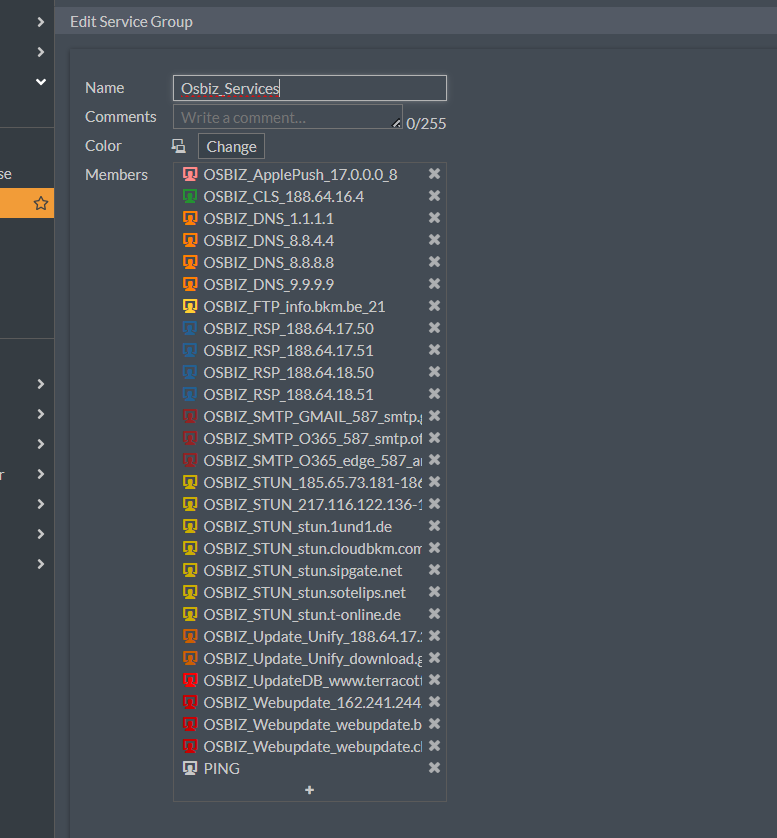
set member OSBIZ_DNS_1.1.1.1 OSBIZ_DNS_8.8.8.8 OSBIZ_DNS_8.8.4.4 OSBIZ_DNS_9.9.9.9 OSBIZ_RSP_188.64.17.50 OSBIZ_RSP_188.64.18.50 OSBIZ_RSP_188.64.17.51 OSBIZ_RSP_188.64.18.51 OSBIZ_CLS_188.64.16.4 OSBIZ_UpdateDB_www.terracotta.org OSBIZ_SMTP_O365_587_smtp.office365.com OSBIZ_SMTP_O365_edge_587_ams-efz.msacdc.office.com OSBIZ_SMTP_GMAIL_587_smtp.gmail.com OSBIZ_Update_Unify_download.gsi.ms_443 OSBIZ_Update_Unify_188.64.17.224_443 OSBIZ_Webupdate_webupdate.bkm.be_443 OSBIZ_Webupdate_webupdate.cloudbkm.com_443 OSBIZ_Webupdate_162.241.244.208_443 OSBIZ_FTP_info.bkm.be_21 OSBIZ_ApplePush_17.0.0.0_8 OSBIZ_STUN_stun.sotelips.net OSBIZ_STUN_stun.sipgate.net OSBIZ_STUN_stun.t-online.de OSBIZ_STUN_stun.1und1.de OSBIZ_STUN_stun.cloudbkm.com OSBIZ_STUN_217.116.122.136-143 OSBIZ_STUN_185.65.73.181-186 PING
next
end
🎉 Result: You now have a service group called Osbiz_Services containing all necessary services!
📍 Create Address Objects
Now let’s create address objects for all the IP ranges and FQDNs. Same drill - copy and paste this entire block:
config firewall address
edit Osbiz_1_1_1_1
set type ipmask
set subnet 1.1.1.1 255.255.255.255
next
edit Osbiz_8_8_4_4
set type ipmask
set subnet 8.8.4.4 255.255.255.255
next
edit Osbiz_8_8_8_8
set type ipmask
set subnet 8.8.8.8 255.255.255.255
next
edit Osbiz_9_9_9_9
set type ipmask
set subnet 9.9.9.9 255.255.255.255
next
edit Osbiz_188_64_17_50
set type ipmask
set subnet 188.64.17.50 255.255.255.255
next
edit Osbiz_188_64_18_50
set type ipmask
set subnet 188.64.18.50 255.255.255.255
next
edit Osbiz_188_64_17_51
set type ipmask
set subnet 188.64.17.51 255.255.255.255
next
edit Osbiz_188_64_18_51
set type ipmask
set subnet 188.64.18.51 255.255.255.255
next
edit Osbiz_188_64_16_4
set type ipmask
set subnet 188.64.16.4 255.255.255.255
next
edit Osbiz_188_64_17_224
set type ipmask
set subnet 188.64.17.224 255.255.255.255
next
edit Osbiz_162_241_244_208
set type ipmask
set subnet 162.241.244.208 255.255.255.255
next
edit Osbiz_net_17_0_0_0_8
set type ipmask
set subnet 17.0.0.0 255.0.0.0
next
edit Osbiz_217_116_122_136_to_143
set type iprange
set start-ip 217.116.122.136
set end-ip 217.116.122.143
next
edit Osbiz_185_65_73_181_to_186
set type iprange
set start-ip 185.65.73.181
set end-ip 185.65.73.186
next
edit Osbiz_stun_sotelips_net
set type fqdn
set fqdn stun.sotelips.net
next
edit Osbiz_stun_sipgate_net
set type fqdn
set fqdn stun.sipgate.net
next
edit Osbiz_stun_t_online_de
set type fqdn
set fqdn stun.t-online.de
next
edit Osbiz_stun_1und1_de
set type fqdn
set fqdn stun.1und1.de
next
edit Osbiz_stun_cloudbkm_com
set type fqdn
set fqdn stun.cloudbkm.com
next
edit Osbiz_www_terracotta_org
set type fqdn
set fqdn www.terracotta.org
next
edit Osbiz_smtp_office365_com
set type fqdn
set fqdn smtp.office365.com
next
edit Osbiz_ams_efz_msacdc_office_com
set type fqdn
set fqdn ams-efz.msacdc.office.com
next
edit Osbiz_smtp_gmail_com
set type fqdn
set fqdn smtp.gmail.com
next
edit Osbiz_webupdate_bkm_be
set type fqdn
set fqdn webupdate.bkm.be
next
edit Osbiz_webupdate_cloudbkm_com
set type fqdn
set fqdn webupdate.cloudbkm.com
next
edit Osbiz_info_bkm_be
set type fqdn
set fqdn info.bkm.be
next
end
config firewall addrgrp
edit Osbiz_destinations
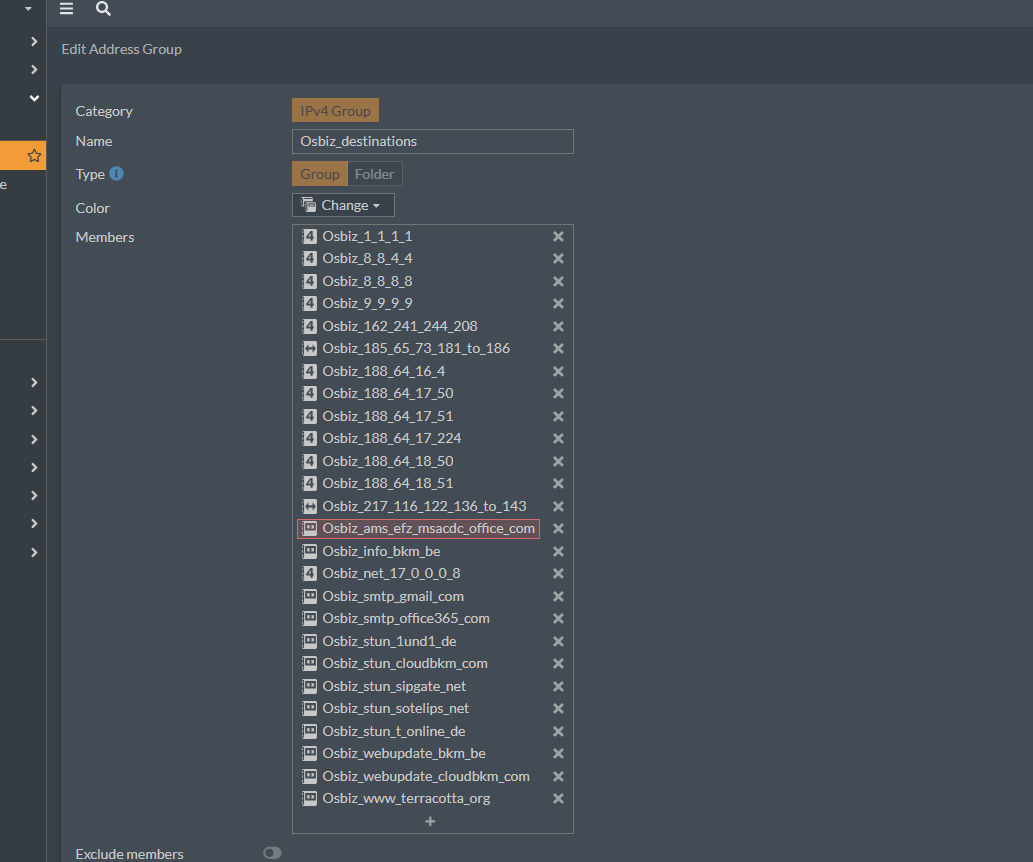
set member Osbiz_1_1_1_1 Osbiz_8_8_4_4 Osbiz_8_8_8_8 Osbiz_9_9_9_9 Osbiz_188_64_17_50 Osbiz_188_64_18_50 Osbiz_188_64_17_51 Osbiz_188_64_18_51 Osbiz_188_64_16_4 Osbiz_188_64_17_224 Osbiz_162_241_244_208 Osbiz_net_17_0_0_0_8 Osbiz_217_116_122_136_to_143 Osbiz_185_65_73_181_to_186 Osbiz_stun_sotelips_net Osbiz_stun_sipgate_net Osbiz_stun_t_online_de Osbiz_stun_1und1_de Osbiz_stun_cloudbkm_com Osbiz_www_terracotta_org Osbiz_smtp_office365_com Osbiz_ams_efz_msacdc_office_com Osbiz_smtp_gmail_com Osbiz_webupdate_bkm_be Osbiz_webupdate_cloudbkm_com Osbiz_info_bkm_be
next
end
🎉 Result: You now have an address group called Osbiz_destinations with all destinations!
🔐 Step 3: Create Firewall Policies
Time to tie it all together with firewall rules! Here’s how to set up your policy correctly:
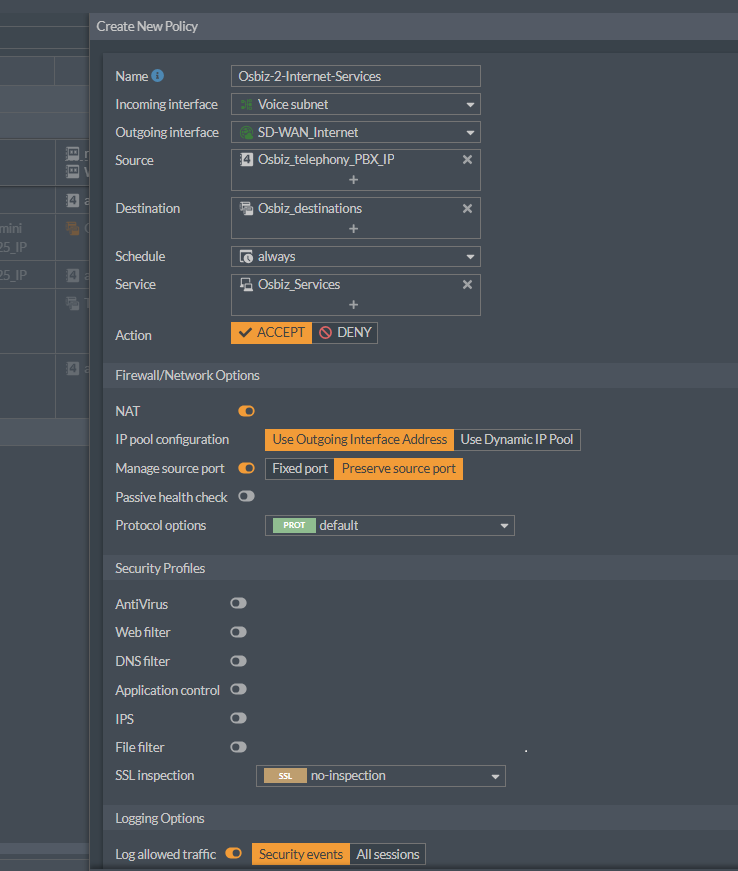
📋 Policy Configuration Checklist
Follow these settings exactly for best results:
| Setting | Value | Why? |
|---|---|---|
| 1️⃣ Name | Something descriptive like “Allow_OpenScape_Business” | Keep it clear for future you! |
| 2️⃣ Incoming Interface | Your voice subnet interface | Where the telephony devices live |
| 3️⃣ Outgoing Interface | WAN or SD-WAN virtual interface | Your internet connection |
| 4️⃣ Source | OpenScape Business system IP | Specific IP of your Telephony system |
| 5️⃣ Destination | Osbiz_destinations group | The address group you created |
| 6️⃣ Service | Osbiz_Services group | The service group you created |
| 7️⃣ Schedule | Always | Self-explanatory! |
| 8️⃣ Action | ACCEPT | Let the traffic through |
⚠️ Security Profiles: Don’t Touch!
Leave all security profiles DISABLED for this rule. UTM inspection isn’t needed for trusted telephony backend connections and can cause issues!
💡 Logging Tip
Enable logging if you want visibility into the traffic. It’s helpful for troubleshooting!
✅ Final Steps
- Save the policy
- Enable the policy
- Move it up in the policy list so it’s evaluated before any broader deny rules
- Test your phones - they should work perfectly now! 📞✨
- Add a General firewall rule for Https,DNs & NTP as described below
🌐 Generic Voice Subnet Rule
As a final touch, I recommend creating a generic firewall policy for the entire voice subnet. This allows phones to access general internet services while maintaining security.
🎯 What to Allow
Create a rule that permits from your full voice subnet to internet for:
- 🌍 DNS - Name resolution
- 🌐 HTTP/HTTPS - Web access
- ⏰ NTP - Time synchronization
🛡️ Security Difference
🔐 Important Security Note:
ENABLE all security profiles on this generic rule! Unlike the specific OpenScape rule, this one is more broad and needs UTM protection.
This approach gives you:
- ✅ Specific, trusted connections for OpenScape (no security profile interference)
- ✅ General internet access for phones with full security scanning
- ✅ Best of both worlds!
🎊 You’re Done!
That’s it! Your FortiGate is now properly configured to handle Mitel OpenScape Business traffic without any interference. Your phones should be crystal clear, and your users should be happy! 🎉
🆘 Troubleshooting Quick Tips
If something isn’t working:
- ✅ Double-check that SIP ALG is really disabled (use
showto verify) - ✅ Verify your firewall policy order (specific rules before generic ones)
- ✅ Check the logs to see if traffic is being blocked
- ✅ Make sure you’re using the correct OpenScape Business system IP address
📚 Sources & Additional Resources
Technical References:
- Fortinet Community - Disabling VoIP Inspection
- Archived Version (just in case!)
Related Downloads:
📄 Download Latest Osbiz Firewall Settings (PDF)
🔜 Coming Soon
Stay tuned for additional guides covering:
- 🌐 MyPortal@Work configuration
- 📱 Unify Phone app setup
- 🎯 Optional OpenScape Business features
Links will be added here once published!
Made with ❤️ for the telephony community. Questions? Feel free to reach out!